What is actually in these files
The traditional broadsheet is the only format on this site that asks for a margin on all four edges, including the inside one, so the cyan required area and the column grid in these files sit in exactly the same place. It is also the only one that runs in multiples of two rather than four, which makes it the cheapest way to print a very short paper. At 578mm tall it exceeds what Word will accept, so this is the one format here with no .docx.
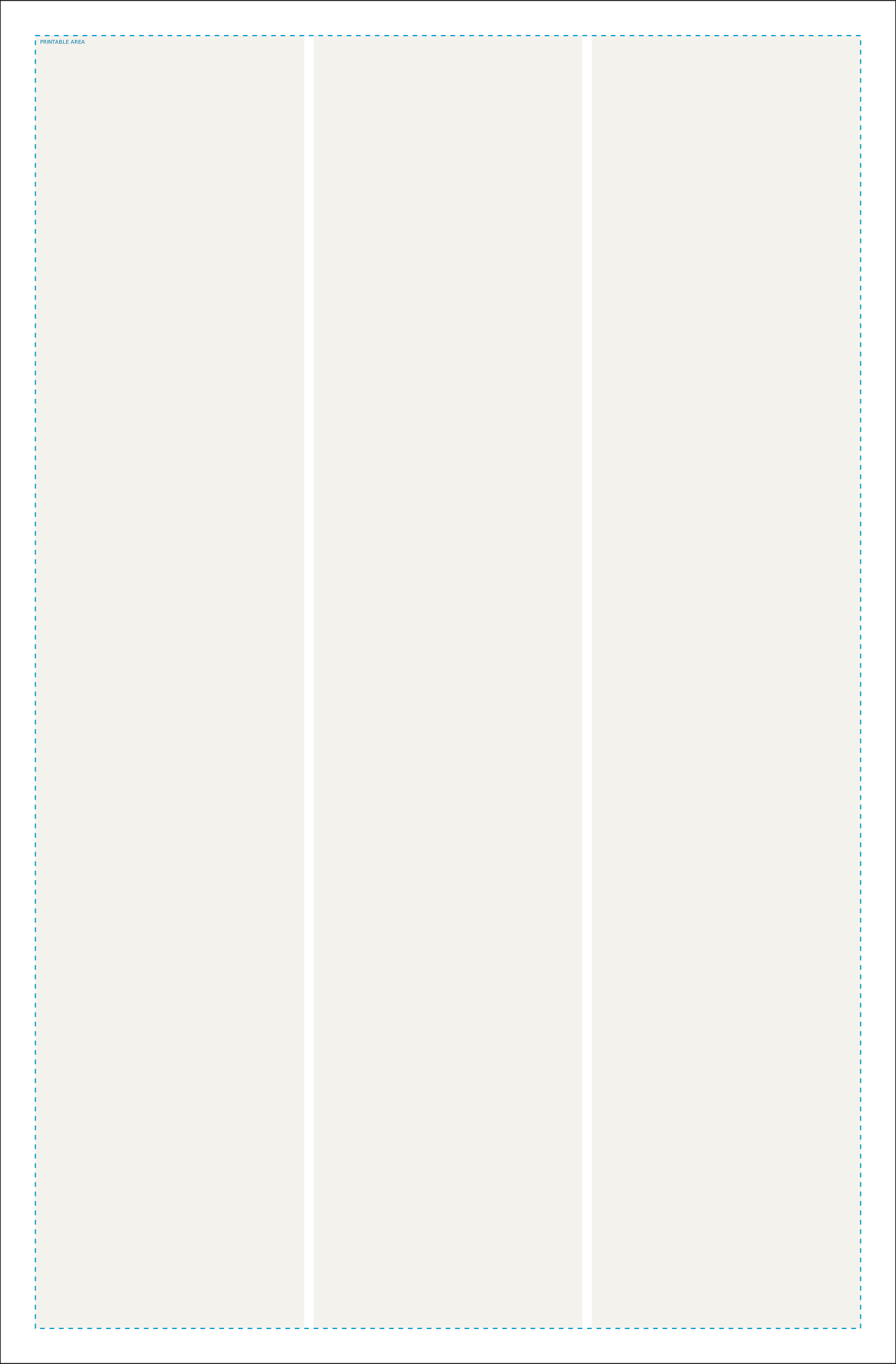
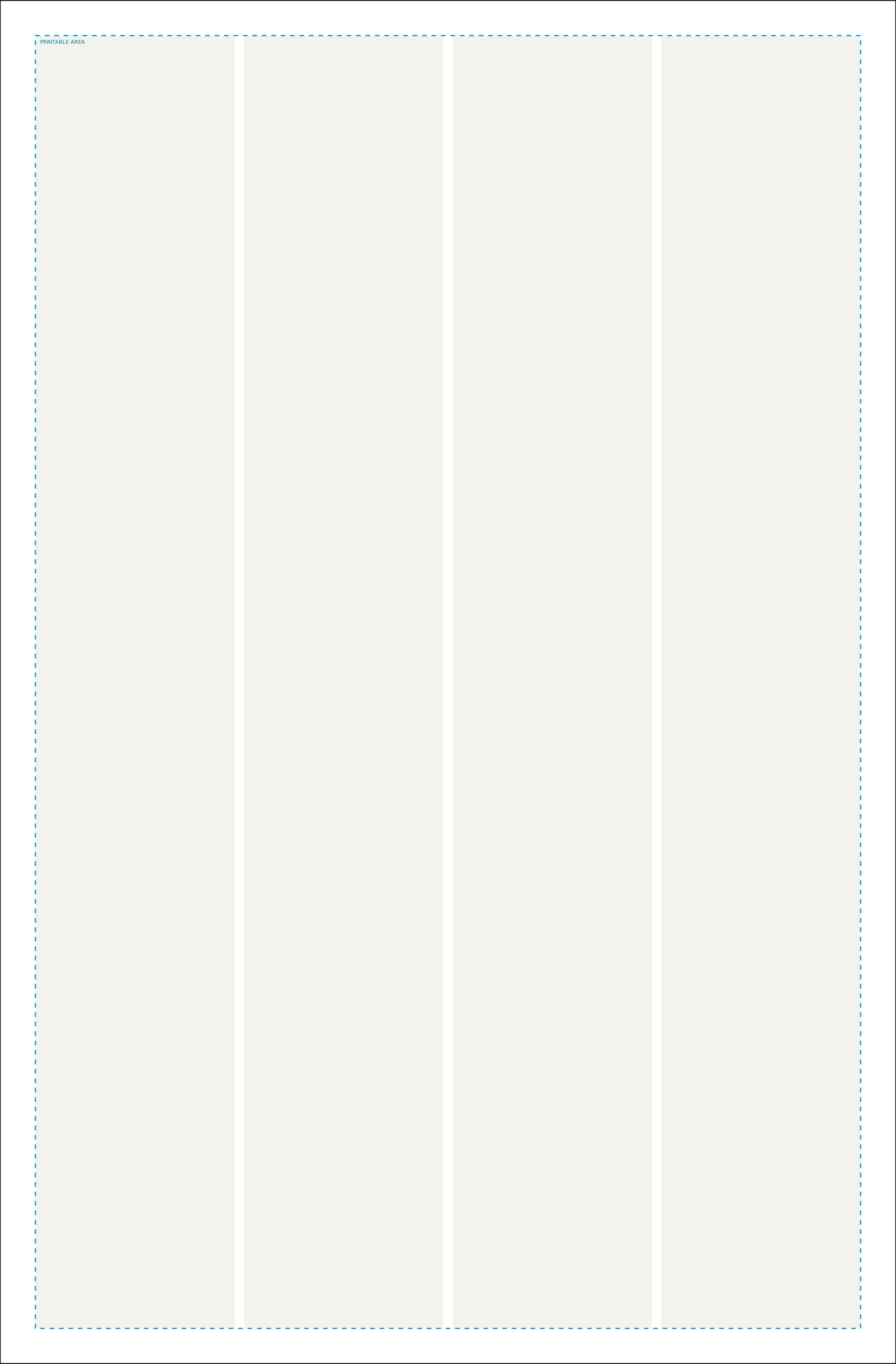
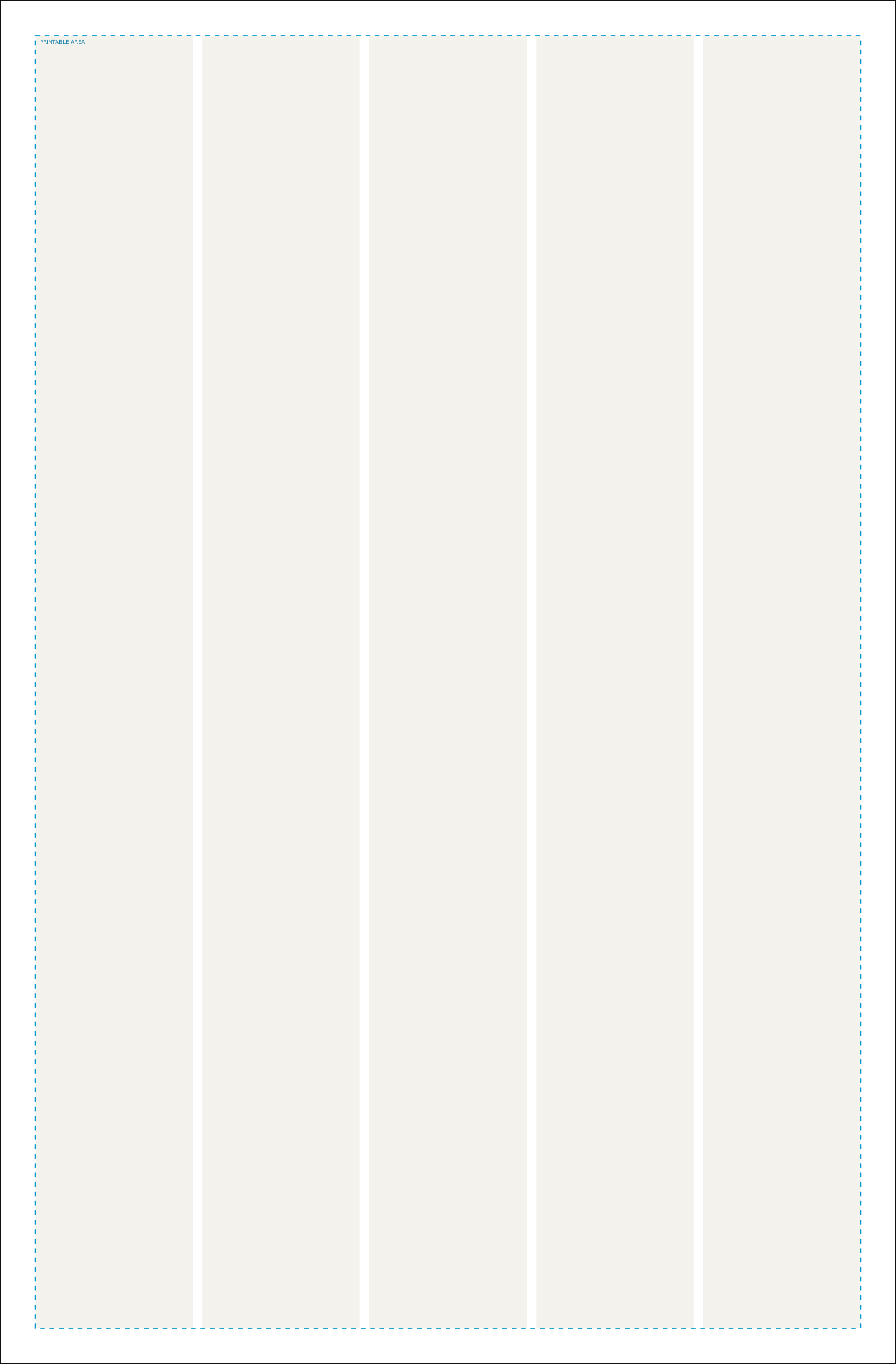
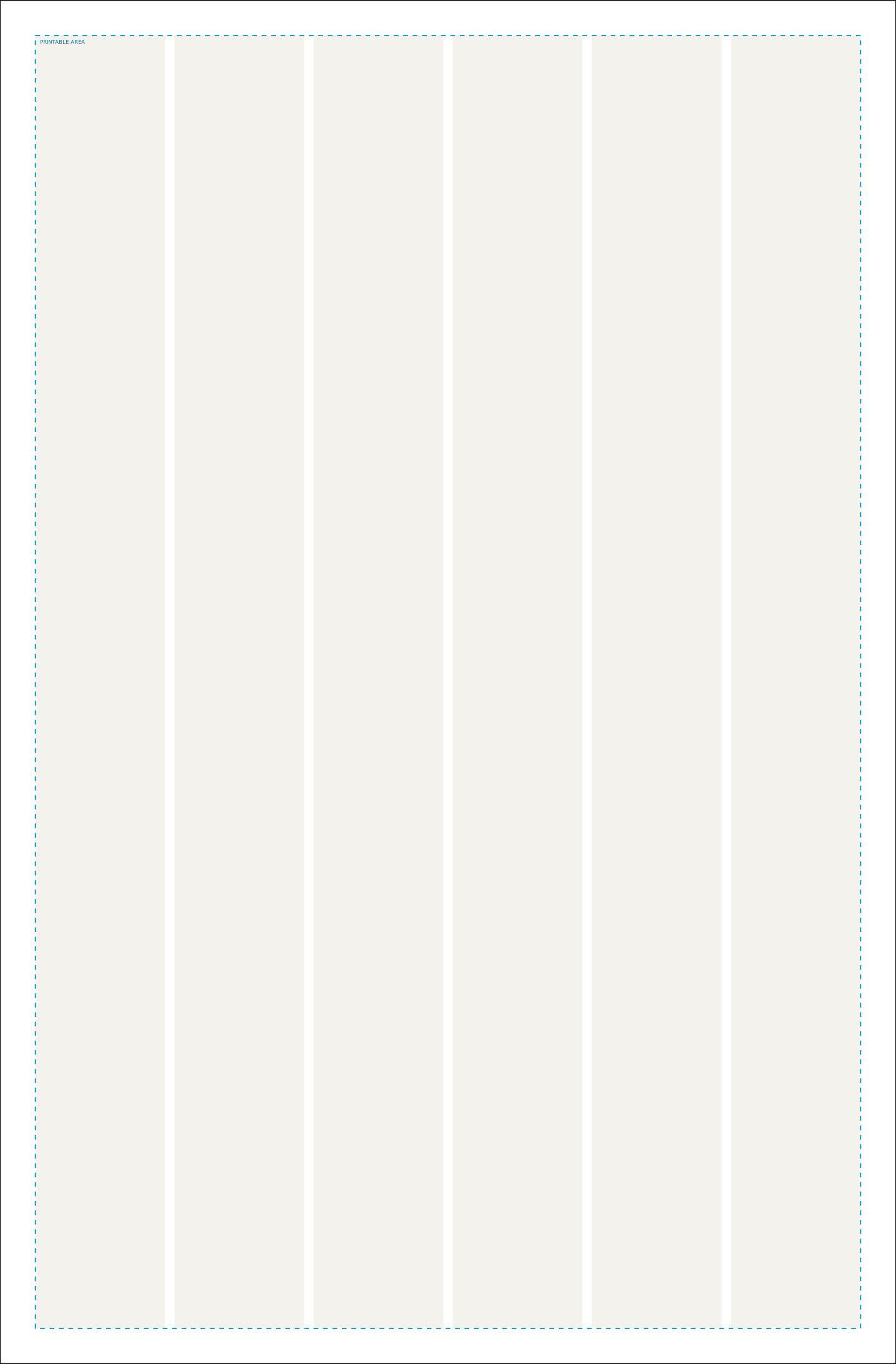
Each file carries three pieces of geometry and keeps them visually distinct, because they are not the same kind of thing. The black outline is the trim: where the guillotine comes down and the finished 380 by 578 millimetre page begins. The cyan dashed box is Newspaper Club's required printable area, 350 by 548 millimetres, which is their rule and not our opinion. The pale tinted blocks are the column grid, which is our recommendation and the only thing on the page you should feel free to ignore.
Why the columns do not fill the whole printable area
On this format the margin applies to all four edges, so the column grid and the printable area line up exactly and there is nothing to reconcile. The cyan box and the outer edge of the columns sit on top of each other in the files.
There is no bleed, and that changes what you export
Newspaper Club does not accept bleed on this format, so the template is exactly the trim size and there is nothing extra around the edge. When you export, turn crop marks off and set bleed to zero. A PDF with 3mm of bleed and a set of crop marks is the single most common reason a newspaper file gets sent back, and it happens because most design software adds both by default.
Which column count to choose
There is no correct answer, but there is a readable range. A column narrower than about 40 millimetres forces so many hyphens that the text starts to look shredded; a column wider than about 80 makes the eye lose its place on the return sweep. On this format the four options work out as follows.
| Columns | Width | Width | Reads as |
|---|---|---|---|
| 3 | 114.0 mm | 4.49 in | Wide, the eye can lose its place |
| 4 | 84.5 mm | 3.33 in | Wide, the eye can lose its place |
| 5 | 66.8 mm | 2.63 in | Comfortable for body text |
| 6 | 55.0 mm | 2.17 in | Comfortable for body text |
If you are printing a paper that is mostly writing, fewer and wider columns read better. If it is mostly pictures and short items, more and narrower columns give you more places to put things. School and community papers usually land on four or five.
Opening the files
InDesign
Run the .jsx script rather than opening the PDF. Go to File, then Scripts, then double click the file, or drop it into your Scripts Panel folder first. It builds a new document at the right size with the margins, the column grid and the per-edge bleed already set, and it does not touch anything you have open. Everything it does is plain text in the file, so you can read it before you run it.
Illustrator, Affinity, Inkscape and Figma
Open the .svg. All of the guide geometry sits in a single group called guides, so when the layout is finished you select that one group, delete it, and what remains is your artwork on a correctly sized artboard. There is also an empty group called artwork to build inside if you like working that way.
Word
There is no Word template for this format, and the reason is a hard limit rather than an oversight: Word will not accept a page taller than 22 inches, and this one is 22.76. Rather than ship a document that silently resizes itself to something your printer will reject, we leave it out. Use the InDesign script, or open the SVG in Affinity Publisher, Illustrator or Inkscape.
Canva, Publisher and everything else
Anything that lets you set a custom document size can use the PDF as a background reference: place it, lock it, build on top, then remove it before you export. For Canva specifically, the numbers to type into the resize box are on the Canva newspaper setup guide, and the thing to watch for is that Canva will happily let you place text outside the printable area without warning you.
Before you send the file
One thing no template can do for you is fix the page count. Newspaper Club prints this format in multiples of 2, from 2 to 20, and a file with the wrong number of pages is rejected before anyone looks at the design. The InDesign script opens a 2 page document to start you off on the right multiple. If you are unsure how many pages your writing will fill, the words to pages estimator will tell you before you start laying anything out.
Check your photographs as well as your layout. Newsprint is absorbent and unforgiving, and an image that looks acceptable on screen at 100 percent can be well under the resolution Newspaper Club needs. The image DPI checker will tell you the effective resolution of a photograph at the size you are actually printing it, which is the number that matters rather than the one in the file's properties.
Finally, read the full Newspaper Club Traditional Broadsheet specification before you order. These templates encode the geometry, but they cannot encode colour handling, font embedding or file naming, and those are the other three reasons files come back.
Figures on this page come from Newspaper Club artwork guidelines, read on 2026-08-20. Presses vary and printers revise their guidelines, so run a test PDF through their own preflight before you order.